Converting a simple image into an embroidery-ready file sounds easy—until you try doing it with the wrong tool. The EXP format, widely used by Melco embroidery machines, requires precision stitching, proper pathing, and optimized density. That’s why choosing the right conversion tool makes all the difference. If you’ve ever wondered How to Convert JPG to EXP, this guide will walk you through the best tools, practical tips, and the key features that ensure your final stitch file maintains its clarity and quality.
In this article, you’ll discover the top tools professionals use to convert JPG images into clean, machine-ready EXP files without distortions, unnecessary trims, or ragged edges.
Introduction
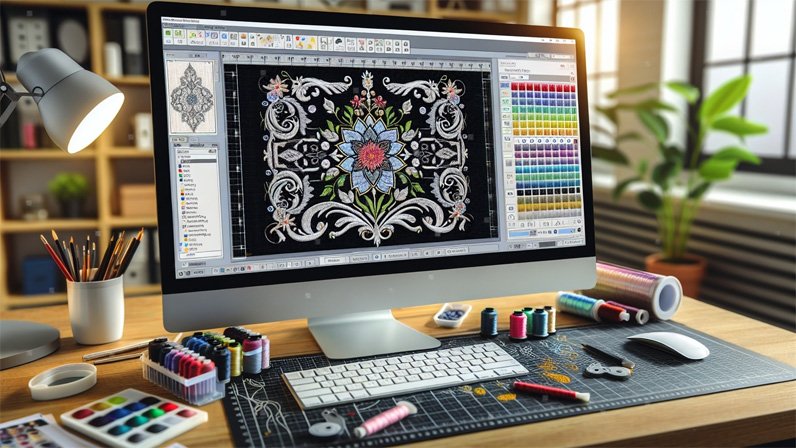
The EXP format is a staple in the embroidery world because of its compatibility with commercial machines and its ability to render intricate stitch details. However, converting a JPG—the most common image format—into EXP isn’t a simple “click and convert” process. It requires digitizing, which means turning flat artwork into stitch commands that an embroidery machine can interpret accurately.
The good news? With the right tools, you can convert JPG to EXP while maintaining crisp lines, balanced density, and smooth stitching. Below, we’ll explore the top software options used by hobbyists, professionals, and commercial embroidery shops worldwide.
What Makes a Good JPG to EXP Conversion Tool?
Before jumping into the list, it’s important to understand what separates a good tool from a bad one. Quality conversion isn’t automatic—it’s a mix of advanced features and manual control.
Look for tools that offer:
1. Stitch Editing Control
The best tools allow users to adjust density, underlay, trims, and stitch types.
2. High-Resolution Auto-Digitizing
Good auto-digitizing gets you 60–70% of the way there, especially for simple logos.
3. Manual Digitizing Options
Professional service providers always rely on manual touch-ups to ensure clean results.
4. File Format Flexibility
Besides EXP, support for formats like DST, PES, JEF, VP3, and HUS is always useful.
5. User-Friendly Interface
Beginners benefit from simpler layouts, while professionals prefer advanced workspaces.
With these criteria in mind, let’s break down the top tools for converting JPG to EXP.
Best Tools to Convert JPG to EXP Without Losing Quality
1. Wilcom Embroidery Studio
Wilcom is the gold standard in embroidery digitizing. It’s used by top-level professionals who want unmatched precision and control.
Key Features
-
Powerful manual digitizing tools
-
High-quality auto-digitizing
-
Accurate stitch simulation
-
Advanced lettering and editing options
Why It’s Great for JPG to EXP
Wilcom maintains incredibly high stitch integrity, making it ideal for converting detailed logos or complex artwork. If you need flawless commercial-grade output, this is the top choice.
2. Hatch Embroidery Software
Hatch, created by Wilcom, offers similar power but at a more affordable price and with a beginner-friendly layout.
Key Features
-
Auto-digitizing with customization
-
User-friendly interface
-
High-quality EXP export options
-
Built-in design editing tools
When to Use It
Hatch is perfect for home embroiderers and small businesses that want clean conversions without spending thousands on enterprise-level software. Its clarity and consistency make it one of the best tools for turning JPG images into professional EXP files.
3. Embird
Embird has been a popular choice for years due to its modular structure and strong customization capabilities.
Key Features
-
Affordable pricing
-
Plug-ins for digitizing, lettering, and editing
-
Ability to digitize from JPG, PNG, BMP, and SVG
-
Precise stitch control
Why It Stands Out
Embird offers deep manual editing, which helps refine auto-digitized results. Users can closely control densities and stitch patterns to achieve high-quality outcomes.
4. Ink/Stitch
Ink/Stitch is a fantastic free option for those starting out or experimenting with digitizing. It is a plugin extension for Inkscape, an open-source vector graphics editor.
Key Features
-
Completely free
-
Vector-based digitizing
-
Good for simple logos
-
Exports to EXP and other formats
Why It’s Useful
While Ink/Stitch can’t compare to paid tools in stitch intelligence, it is incredibly helpful for beginners who want to learn the basics of digitizing without investing money upfront.
5. SewArt
SewArt is a simple, lightweight tool designed for beginners who want to convert JPG to embroidery formats quickly.
Key Features
-
Easy-to-use interface
-
Basic auto-digitizing
-
Good for simple shapes and icons
-
Exports to EXP, DST, PES, JEF, and more
Best Use Case
SewArt works well for less complex designs such as monograms, silhouettes, or two-color shapes. For detailed logos, it may require additional touch-up.
6. PE-Design (Brother)
PE-Design is built for Brother machine users, but it also exports EXP files.
Key Features
-
Strong automatic digitizing
-
Advanced stitch editing
-
Seamless integration with Brother machines
-
Good learning curve
When It Works Best
If you own a Brother embroidery machine, PE-Design provides great color matching, stitch previewing, and clean exports.
7. Melco DesignShop
As EXP is Melco’s native file format, DesignShop naturally excels at producing clean EXP stitch files.
Key Features
-
Best compatibility for EXP
-
High-end digitizing
-
Production-level editing
-
Smooth satin and fill stitches
Why It Dominates
For Melco users, this is the most accurate way to convert JPG to EXP without file corruption or stitch errors. It’s built specifically for commercial-quality output.
How to Convert JPG to EXP: Step-by-Step Overview
Even with the best tools, the quality of your final design depends on proper digitizing steps. Here’s the general workflow professionals follow:
Step 1: Import the JPG
Open your chosen digitizing software and load your JPG file. Clean artwork reduces editing time.
Step 2: Prepare the Image
Adjust the image by:
-
Removing backgrounds
-
Increasing contrast
-
Reducing color count
-
Smoothing jagged edges
Step 3: Auto-Digitize (Optional)
Auto-digitizing gives a quick base, but always review the results.
Step 4: Manually Digitize
This is the key to a high-quality EXP file. Manually add:
-
Underlay
-
Satin or fill stitches
-
Pull compensation
-
Density adjustments
-
Proper sequencing
Step 5: Apply Colors and Finishing Touches
Match thread colors and add trims, lock stitches, and tie-offs.
Step 6: Export to EXP
Save the file in EXP format, ensuring it meets your machine’s hoop and stitch requirements.
Tips to Avoid Quality Loss When Converting JPG to EXP
To maintain crisp stitch quality, follow these proven tips:
Use High-Resolution Images
Blurry JPGs create uneven paths and poor digitizing accuracy.
Reduce Color Complexity
Embroidery machines work best with simplified color palettes.
Avoid Automatic Settings Alone
Always refine the design manually.
Add Proper Underlay
Underlay stabilizes the design and prevents puckering.
Test Stitch Whenever Possible
Running a quick test helps detect density issues early.
Final Thoughts
Converting JPG to EXP doesn’t have to be a struggle—especially when using the right tools. Whether you’re a hobbyist, a small business owner, or a professional digitizer, the programs listed above can help you achieve clean, accurate, and high-quality EXP stitch files.
The key is understanding that quality comes from a mix of software capabilities and manual refinement. With the right approach, even a basic JPG logo can transform into a polished, stitch-perfect EXP embroidery file.
If you’d like, I can also create:
• A full tutorial with screenshots
• A shorter version of this article
• SEO keywords and meta tags
• A service page for JPG to EXP conversion